How to turn an EPUB into an audiobook on iPhone
Last updated:
Short answer: Save a DRM-free EPUB to the Files app on your iPhone, import it into an on-device text-to-speech reader such as CocoReader, and press play. The app reads the book aloud and works offline once your voice is downloaded. Books bought on Kindle or Apple Books are copy-protected and can't be imported.
You don't need to convert anything to MP3 or M4B first, and you don't need a computer. This guide covers the full process, plus the option already built into your iPhone, so you can choose what suits you.
Before you start: is your EPUB DRM-free?
DRM (digital rights management) is copy protection that ties a book to the store you bought it from. A DRM-protected EPUB will only open in that store's app, so no other reader, including CocoReader, can open it.
These sources usually give you DRM-free EPUB files:
- Standard Ebooks: free, carefully formatted public-domain classics. 1,500+ of them are built into CocoReader's library.
- Project Gutenberg: a large library of free public-domain books.
- DRM-free ebook stores and publishers that say "DRM-free" on the book page.
- Your own files: manuscripts, course notes or anything you exported as EPUB yourself.
For example, see Pride and Prejudice or The Adventures of Sherlock Holmes, two public-domain classics.
If your book came from Kindle, Apple Books, Kobo or Google Play Books, it's probably protected. In that case the simplest route is the publisher's audiobook edition, or borrowing it through your library's audiobook app.
Step 1: Get the EPUB into the Files app
Your iPhone needs the EPUB saved somewhere the Files app can see it. Pick whichever way is easiest:
- From Safari: tap the download link, then open the downloads arrow and choose the file. It saves to Downloads in Files.
- From an email: tap and hold the attachment, then tap Save to Files.
- With AirDrop: send it from your Mac. Choose to save it to Files if your iPhone asks.
- From iCloud Drive: drop the file into iCloud Drive on any device, and it appears in Files.
- From Dropbox or Google Drive: open the file in that app, tap Share or Open in, then Save to Files.
Step 2: Import the book into CocoReader
- Download CocoReader from the App Store and open it. CocoReader runs on iPhone with iOS 26.2 or later.
- Tap the Import tab, then Upload a file, and choose your EPUB in the file picker.
- The book appears in your library.
Step 3: Choose a voice and press play
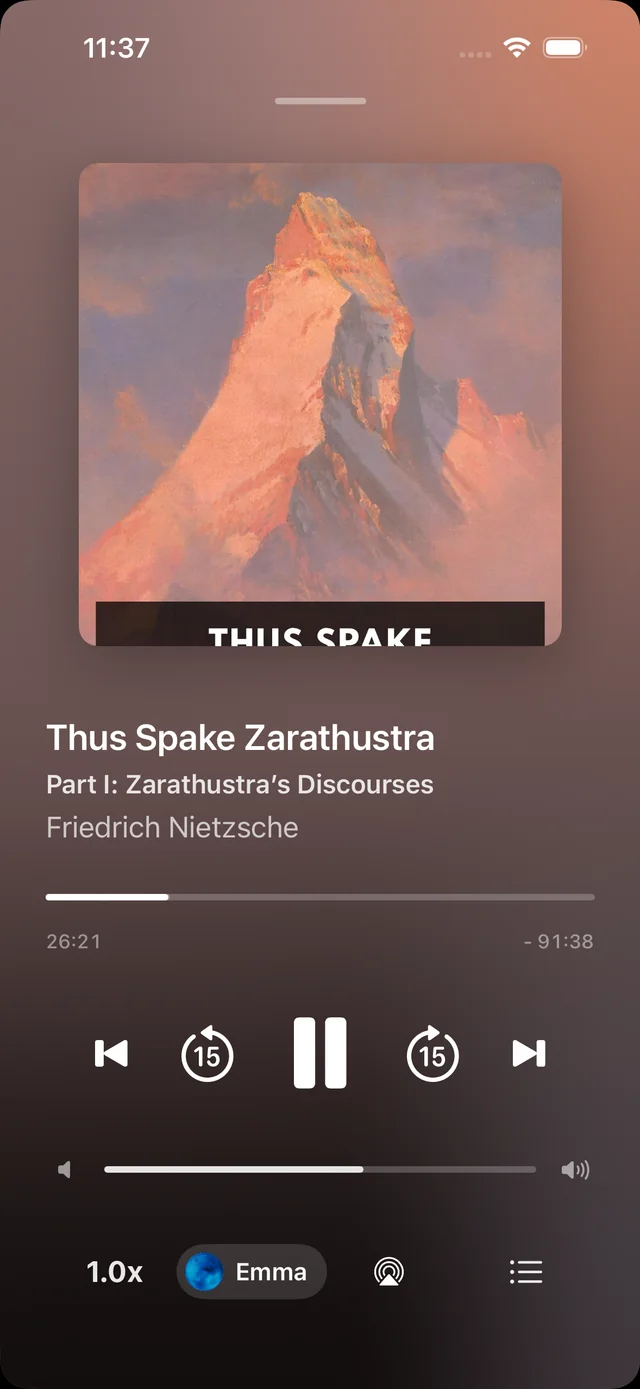
Open the book, choose a voice and tap play. CocoReader generates the voice on your iPhone as it reads, so the audio starts within moments. You don't wait for a whole file to convert.
While it plays, you can:
- choose a different voice
- change the speed, anywhere from 0.75x to 2x
- jump between chapters
- follow the words as they're highlighted
- lock your screen and keep listening
The built-in option: Speak Screen
If you only want to try listening, your iPhone can already read text aloud with Speak Screen:
- Go to Settings › Accessibility › Spoken Content and turn on Speak Screen.
- Open your book in Apple Books.
- Swipe down from the top of the screen with two fingers. Your iPhone starts reading the page and turns pages as it goes.
Speak Screen is built in and good enough for a chapter here and there. It isn't built for whole books, though. It uses the system voice, it can stop if you switch apps, and there's no library, bookmarks or chapter navigation.
| Feature | Speak Screen | CocoReader |
|---|---|---|
| Voice | iPhone system voice | Natural-sounding neural voices that run on your iPhone |
| Built for long books | Not really | Yes |
| Works offline | Yes | Yes, once your voice is downloaded |
| Library and audiobook controls | No | Yes: speed (0.75x to 2x) and chapters. Words highlight as they're read aloud. |
| Keeps playing with the screen locked | Not reliably | Yes |
Do I need to convert my EPUB to MP3 or M4B?
No. Converters that turn an EPUB into an MP3 or M4B file are only useful if you want to play the book in a different audiobook player. CocoReader reads the EPUB directly and creates the audio as you listen, so there are no extra audio files to manage.
Does it work offline? Is my book uploaded anywhere?
Yes, once your voice is downloaded. You need internet once to download a voice; after that, CocoReader works offline. Your books and the audio it creates stay on your iPhone, and the voice runs on your iPhone. Book titles and the text of your books aren't sent to analytics. Once your book is imported, you can listen on a plane or with mobile data turned off.
For full details, see the privacy policy.
FAQ
Can I listen to books I bought on Kindle or Apple Books?
No. Books bought on Kindle or Apple Books are copy-protected and can't be imported. CocoReader works with DRM-free EPUBs.
What do I need to use CocoReader?
An iPhone running iOS 26.2 or later and a DRM-free EPUB. CocoReader reads books in English, and you need internet once to download a voice.
Does it work without an internet connection?
Yes, once your voice is downloaded. You need internet once to download a voice; after that, listening works offline.
Can I change the reading speed?
Yes. You can set the speed anywhere from 0.75x to 2x.
Where can I find free EPUB books?
Standard Ebooks and Project Gutenberg both offer free public-domain classics as DRM-free EPUBs. You can also find Standard Ebooks titles in CocoReader's Discover tab.
Is Speak Screen good enough?
For short passages, yes. For whole books, a dedicated reader gives you a library, keeps playing when your screen is locked, and has proper playback controls.